
Quick start
Create a raw dataset, upload .mat cubes, define labels, annotate, deploy to HyperIA, and train.
HyperLabel is where you import hyperspectral cubes, define classes, draw regions (polygons or boxes), and deploy a dataset into HyperIA for training. This guide follows the in-app flow. Some labels appear in English or Spanish depending on locale.
Note: ENVI import is planned for a future release; today HyperLabel works with .mat cubes as described below.
1. Raw dataset
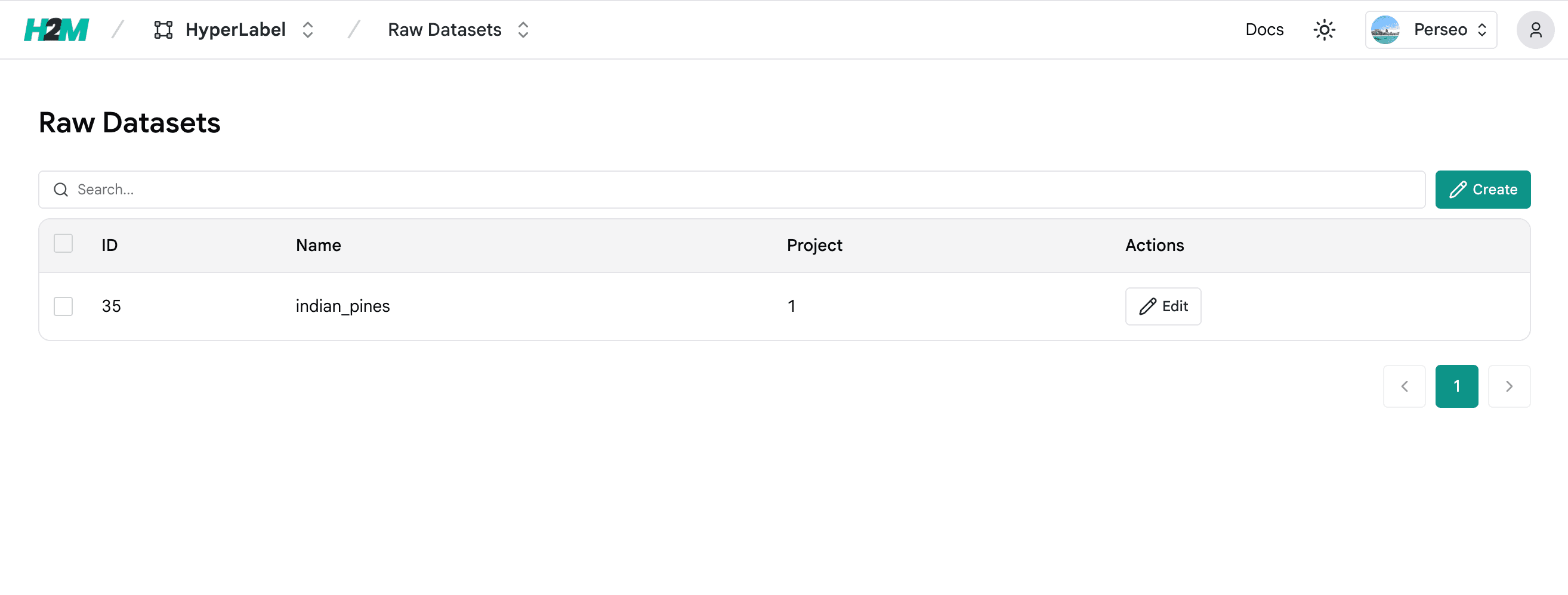
Under HyperLabel → Raw Datasets, list and search datasets, then Create a new raw dataset or open an existing one.
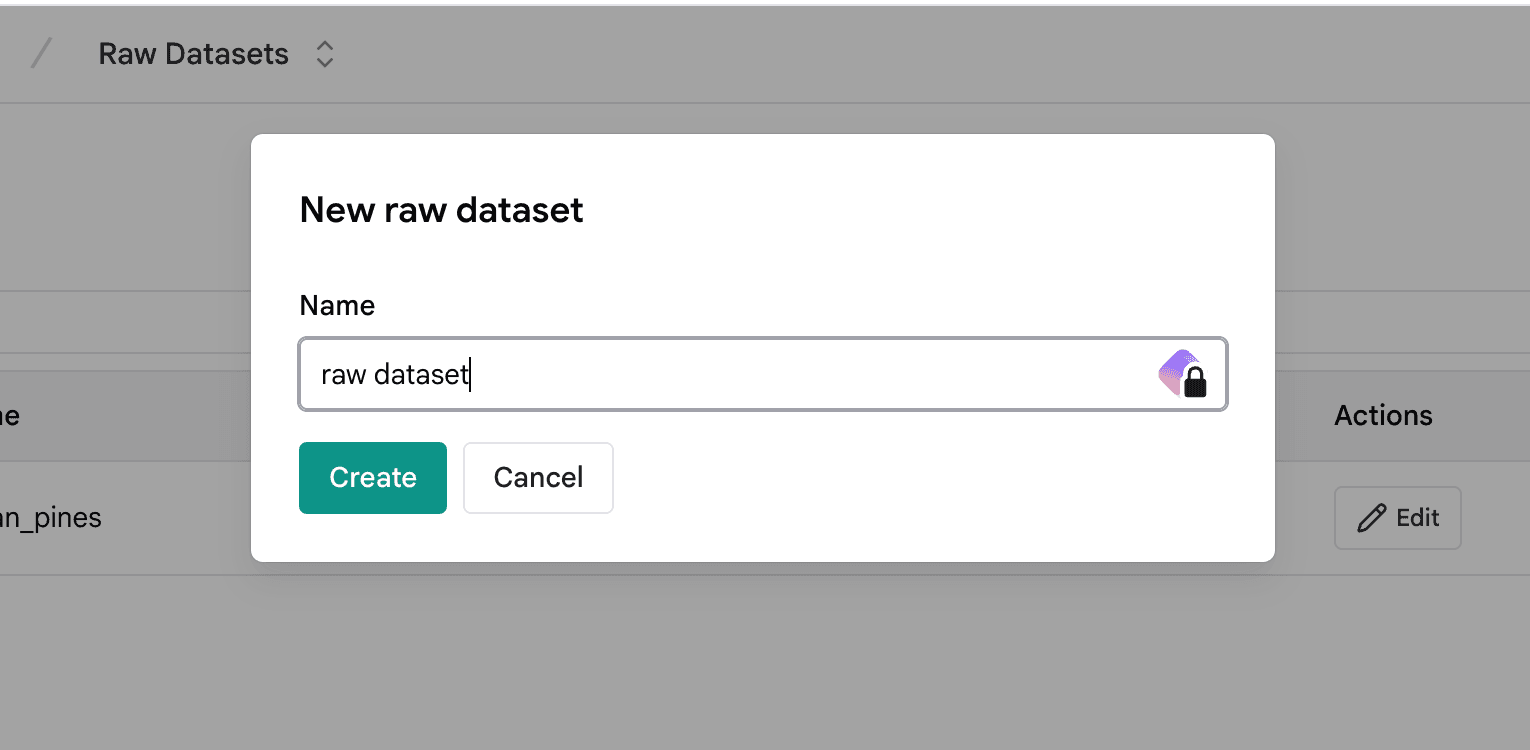
Give the dataset a name and confirm creation.
2. Upload .mat data
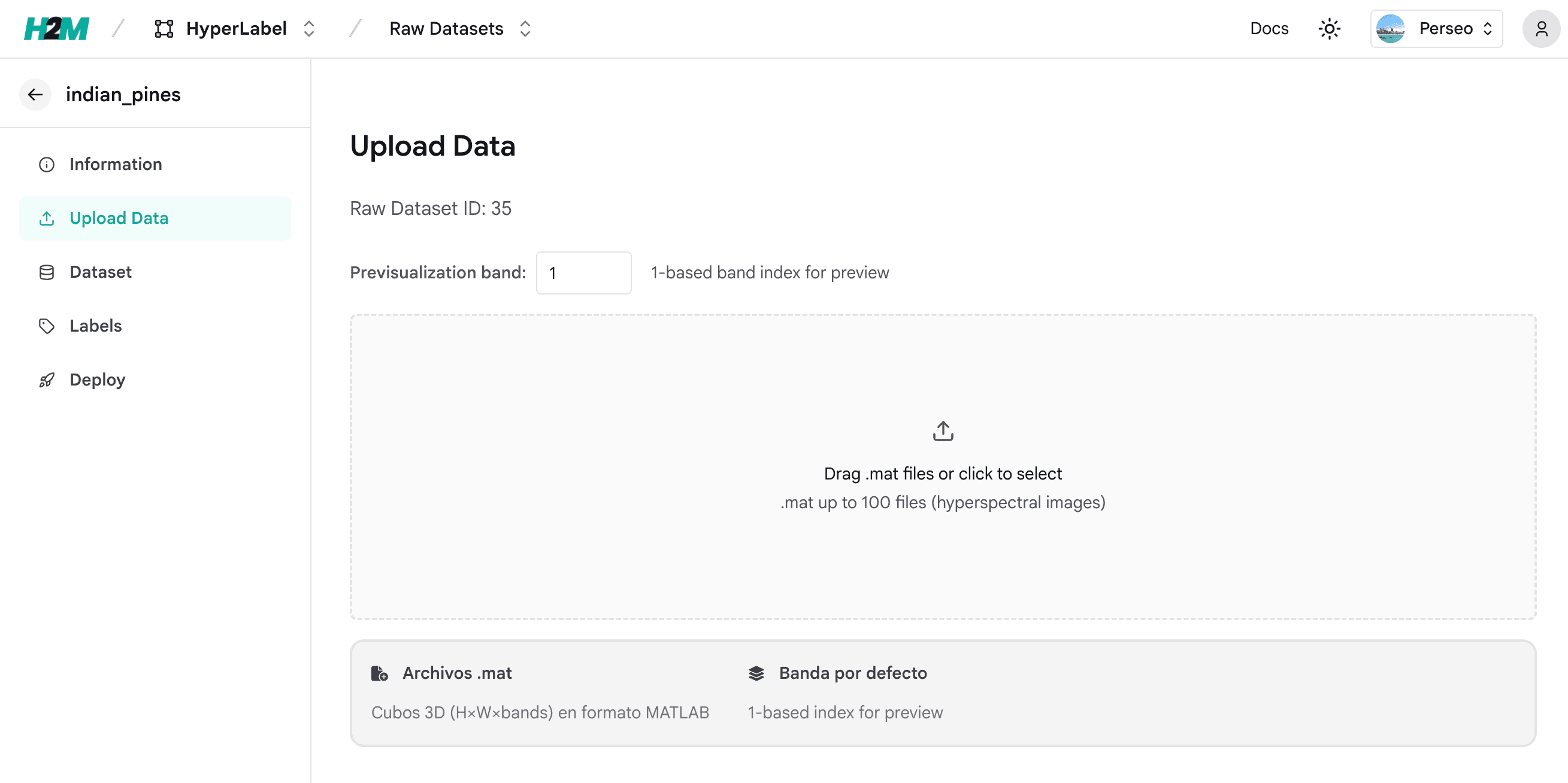
Open Upload Data in the sidebar. Upload MATLAB .mat files containing 3D cubes (height × width × bands). You can add up to 100 files per batch. Set Previsualization band (1-based index) for the grayscale preview band.
3. Labels (classes)
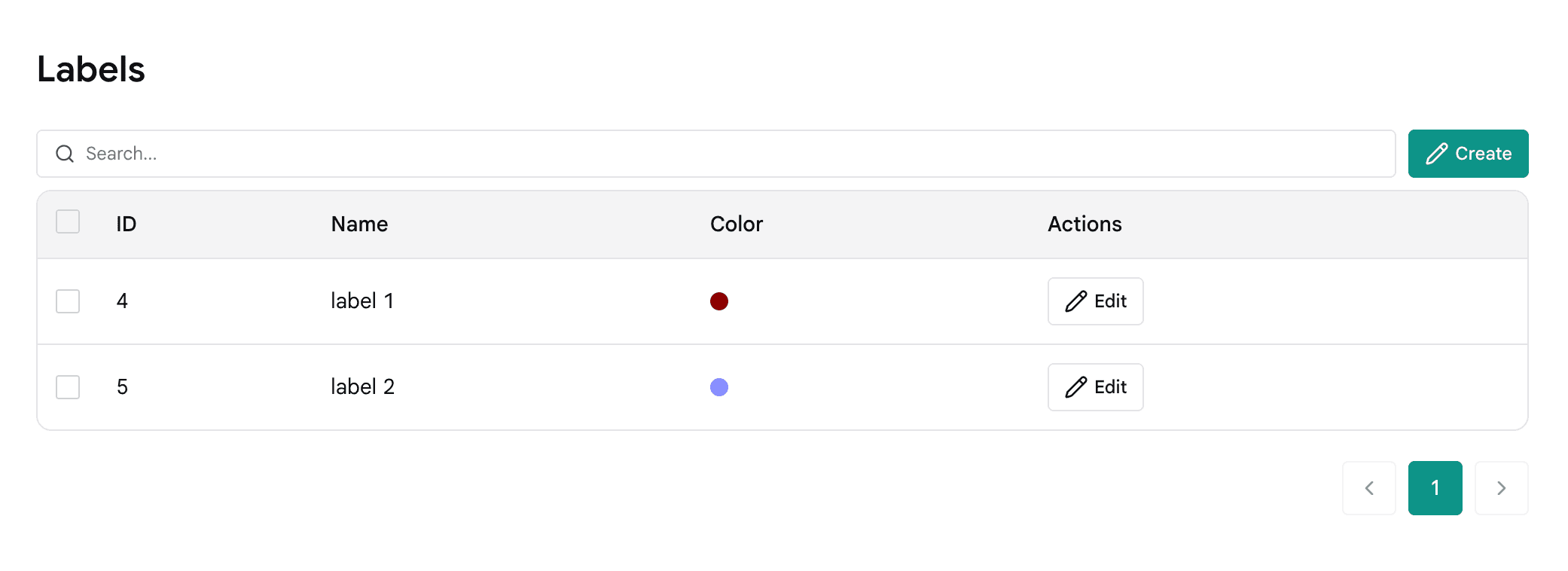
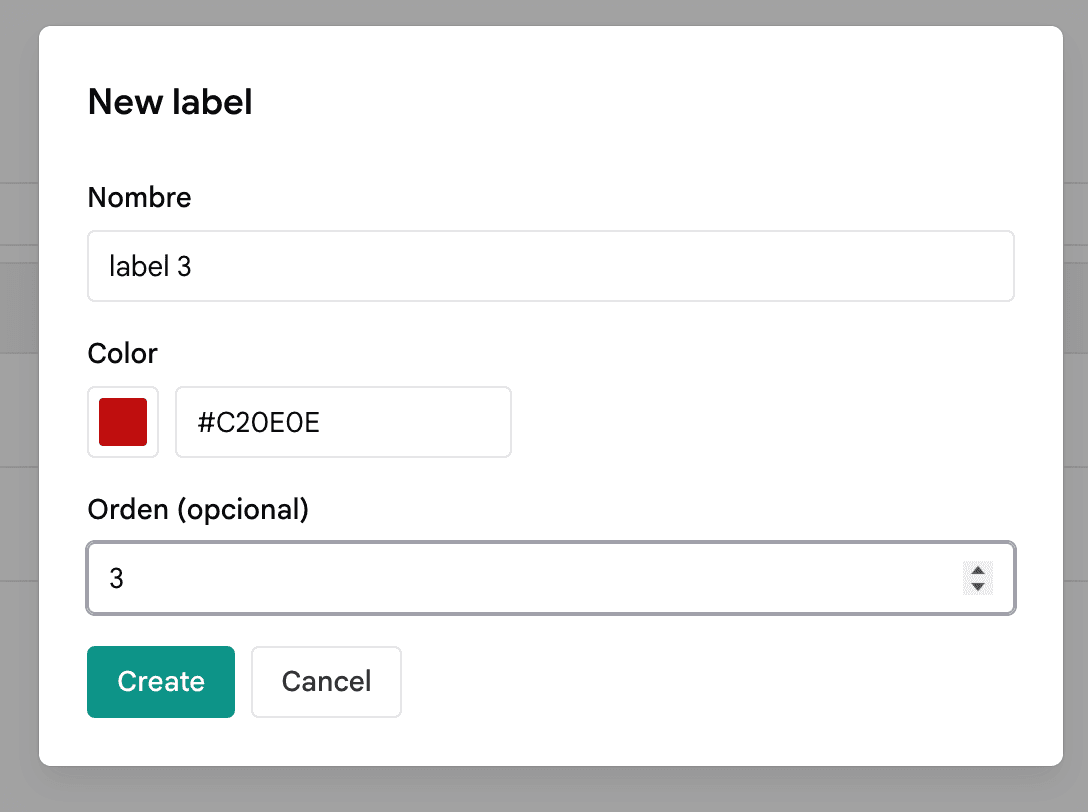
In Labels, create one entry per class: name, color, and optional order. Use Create / Edit from the table.
4. Annotate
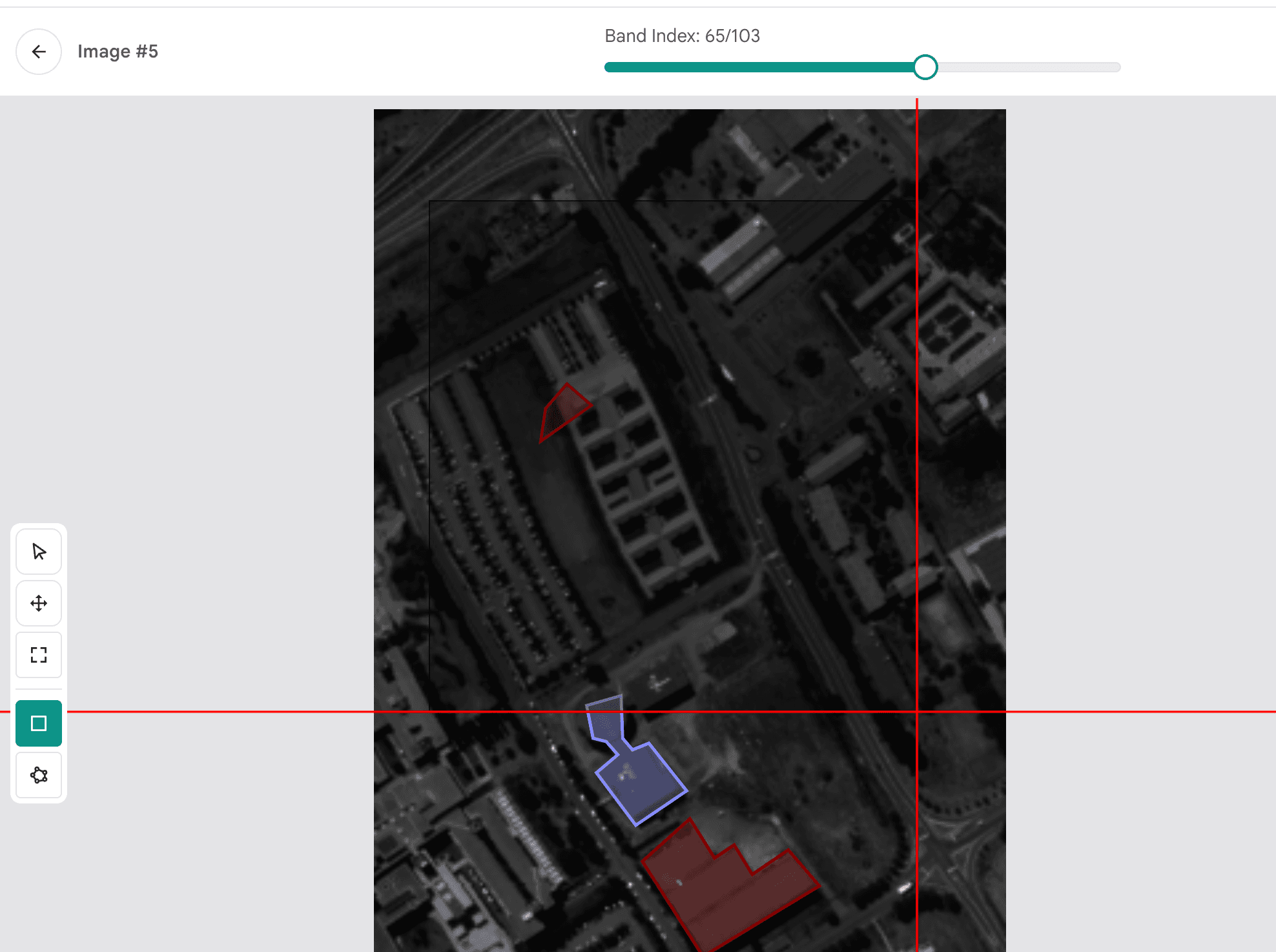
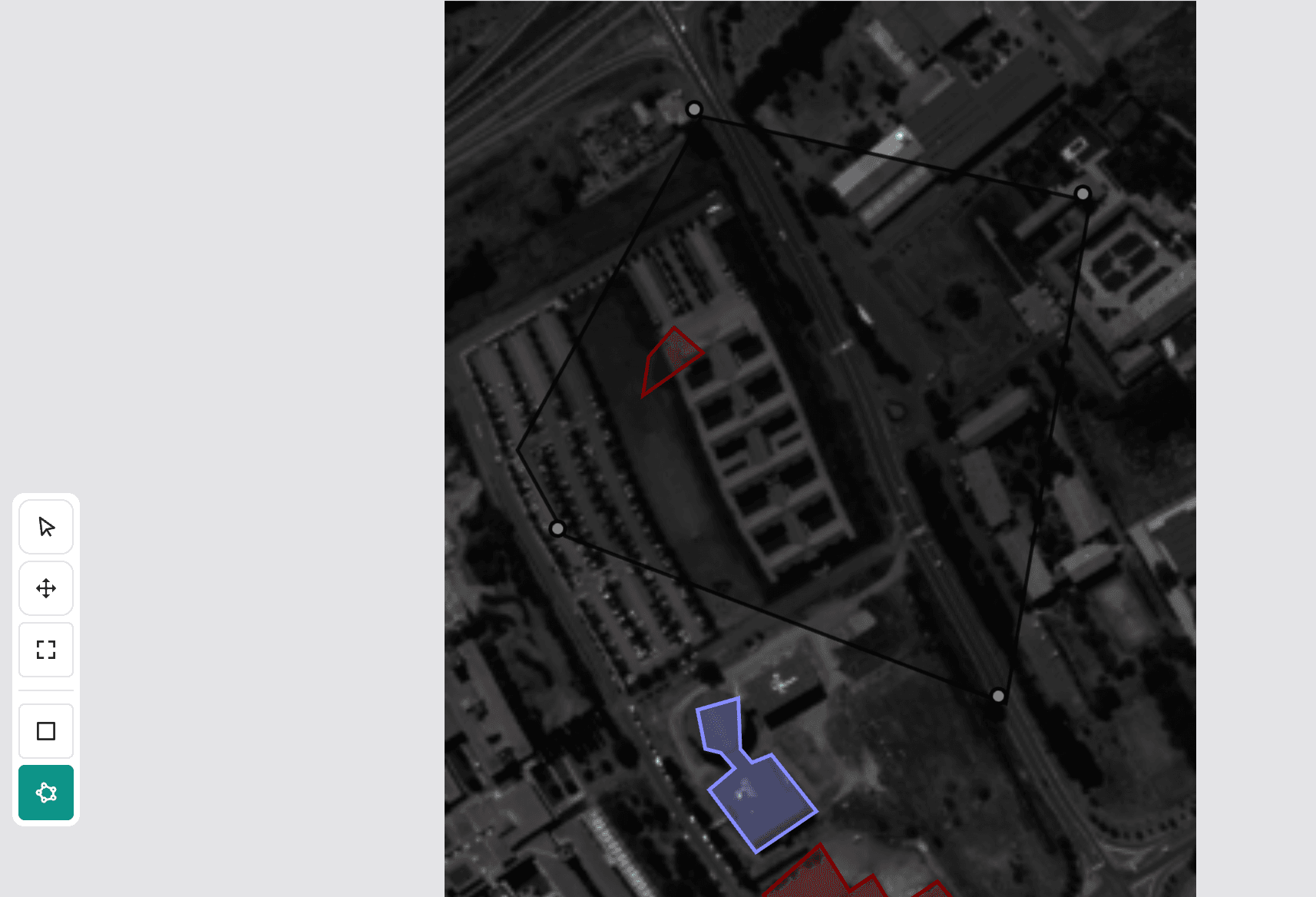
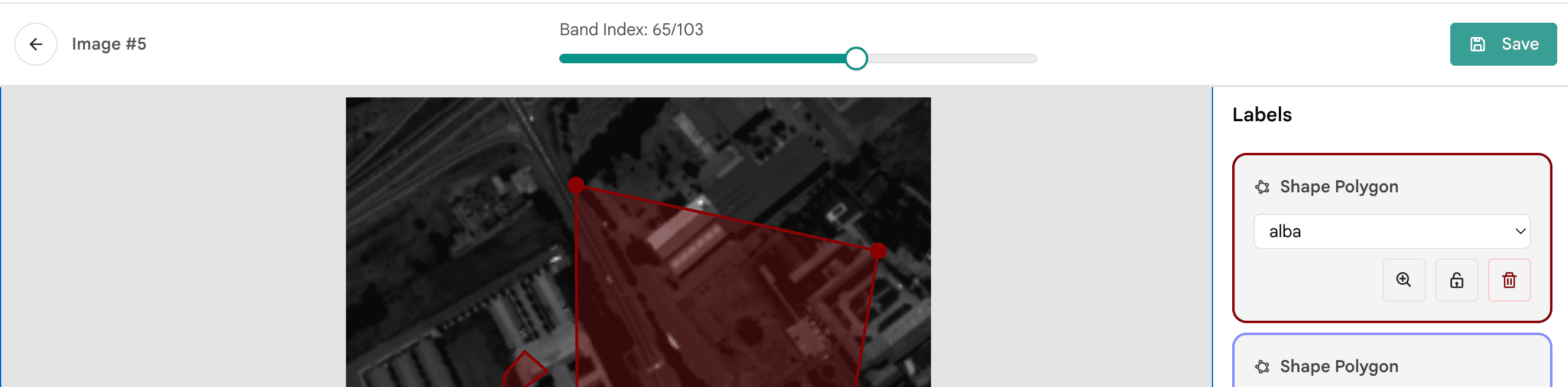
Open an image from the dataset. Use the Band Index slider to browse spectral bands. Use the drawing tools (polygon, rectangle, etc.) to outline regions and assign a class to each shape. Save when you are done.
5. Deploy to HyperIA
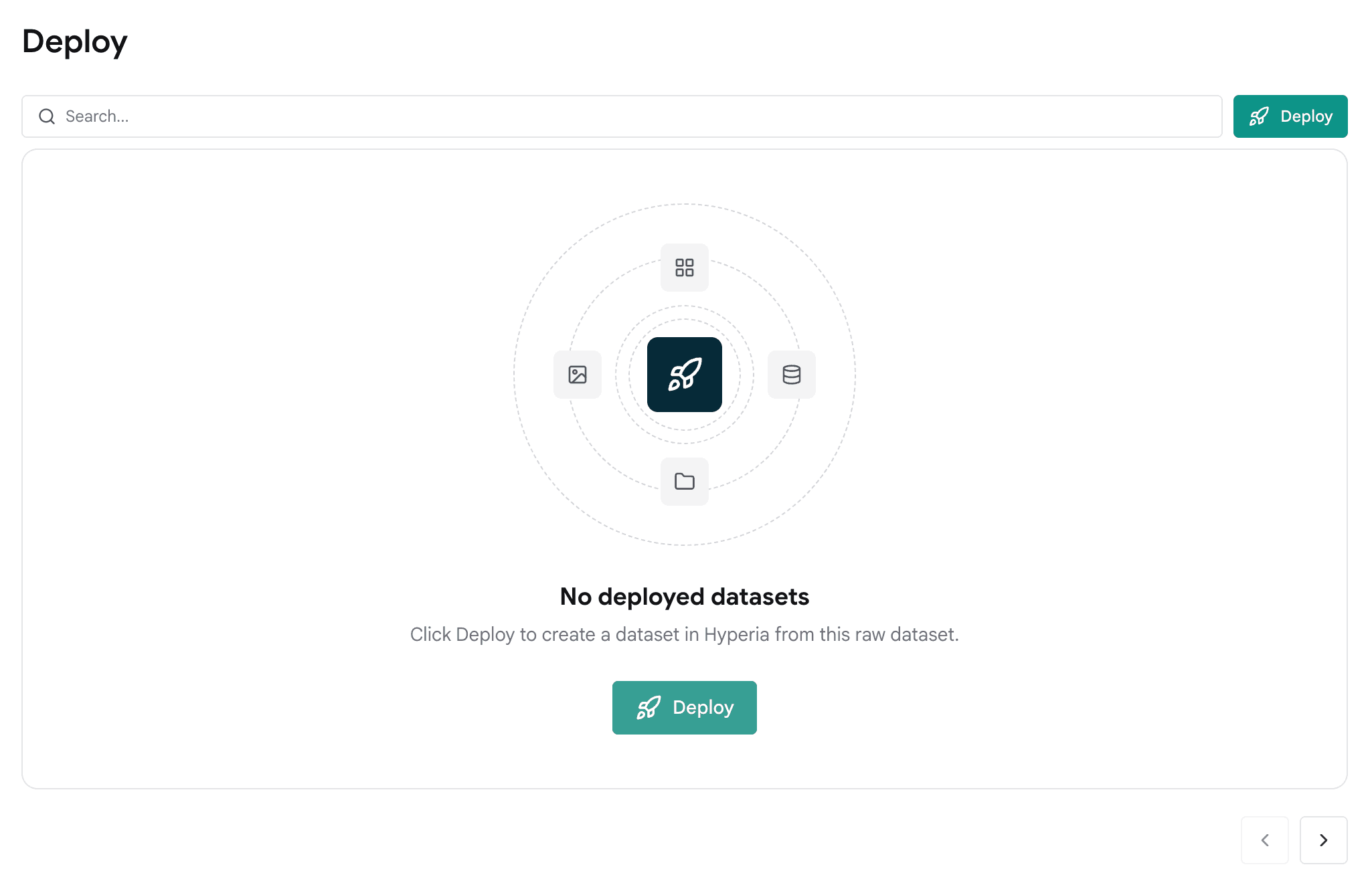
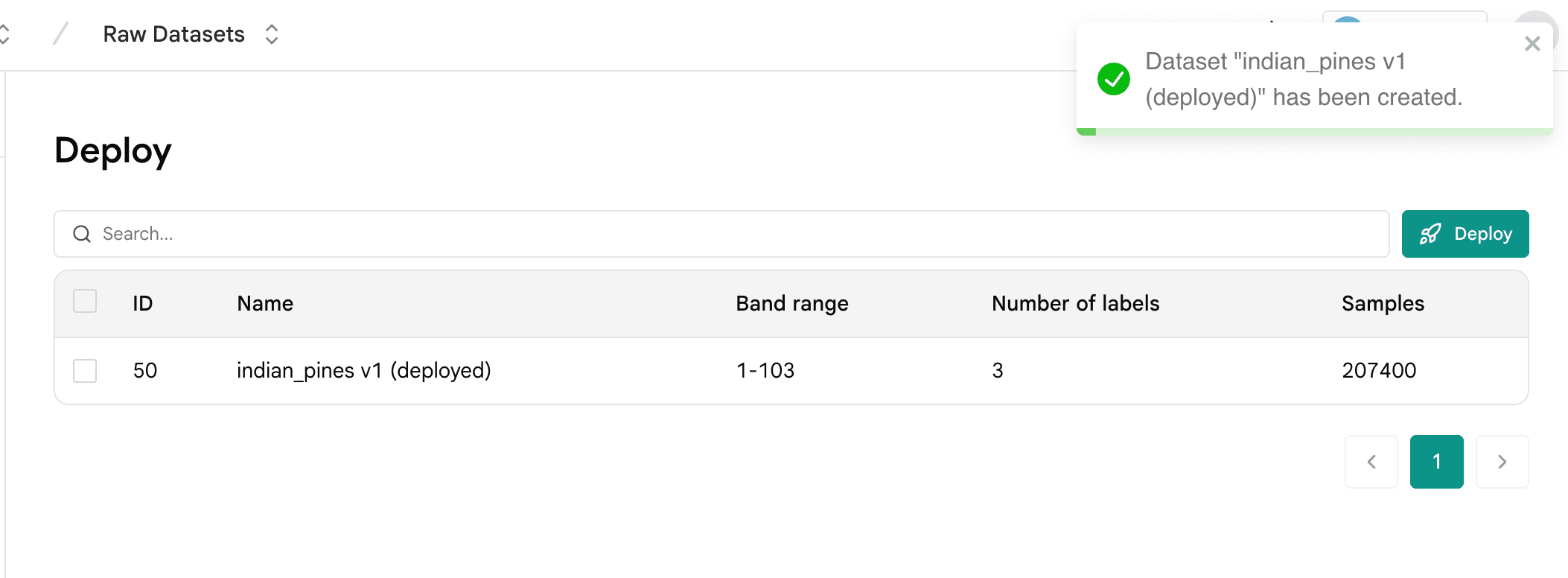
Go to Deploy. When nothing is deployed yet, use Deploy to build a HyperIA dataset from this raw dataset. After success, you will see the deployed row (name, band range, labels, samples).
6. Train in HyperIA
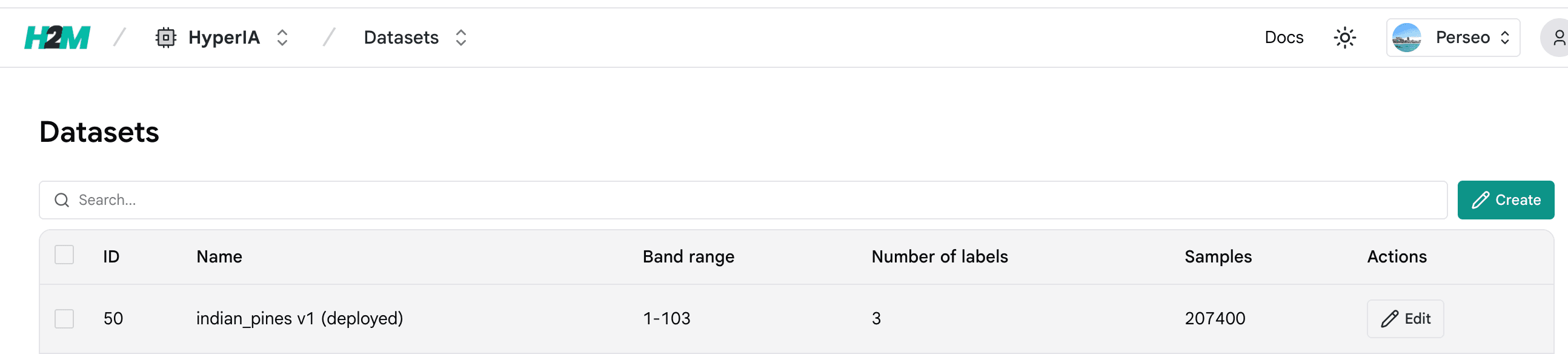
Switch to HyperIA → Datasets. Your deployed dataset appears with the same metadata; you can start a training from there.
Next
- Raw Datasets — reference for the raw-dataset workflow.
- HyperIA quick start — datasets and trainings in HyperIA.