Quick start
Sign in, create a dataset from CSV labels, run a training, and review metrics in HyperIA.
HyperIA is the H2M module where you manage datasets, run trainings (classical ML models on spectral data), and inspect metrics and spectral signatures. This guide follows the product flow shown in the screenshots below. Some UI strings may appear in English or Spanish depending on your locale.
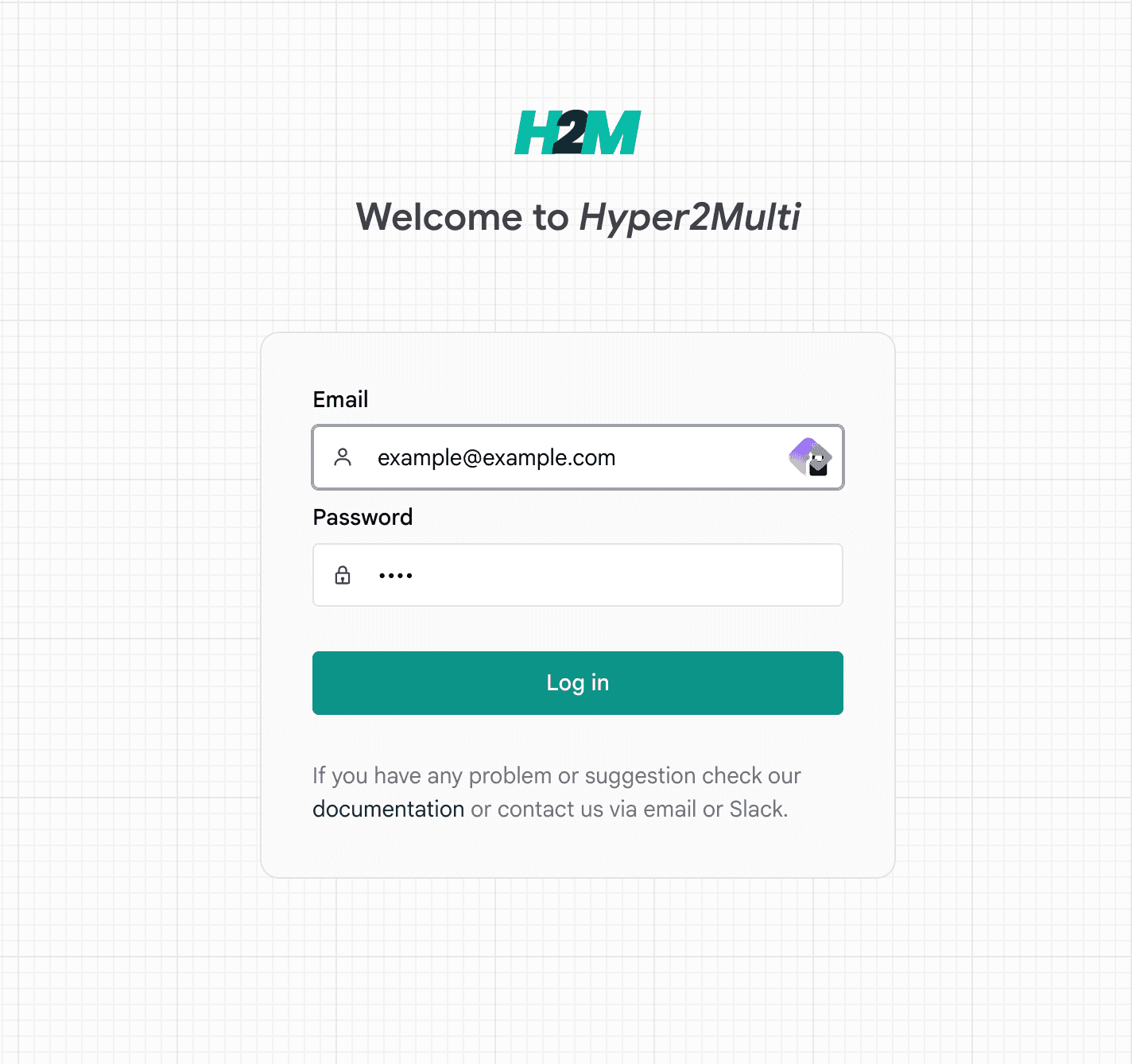
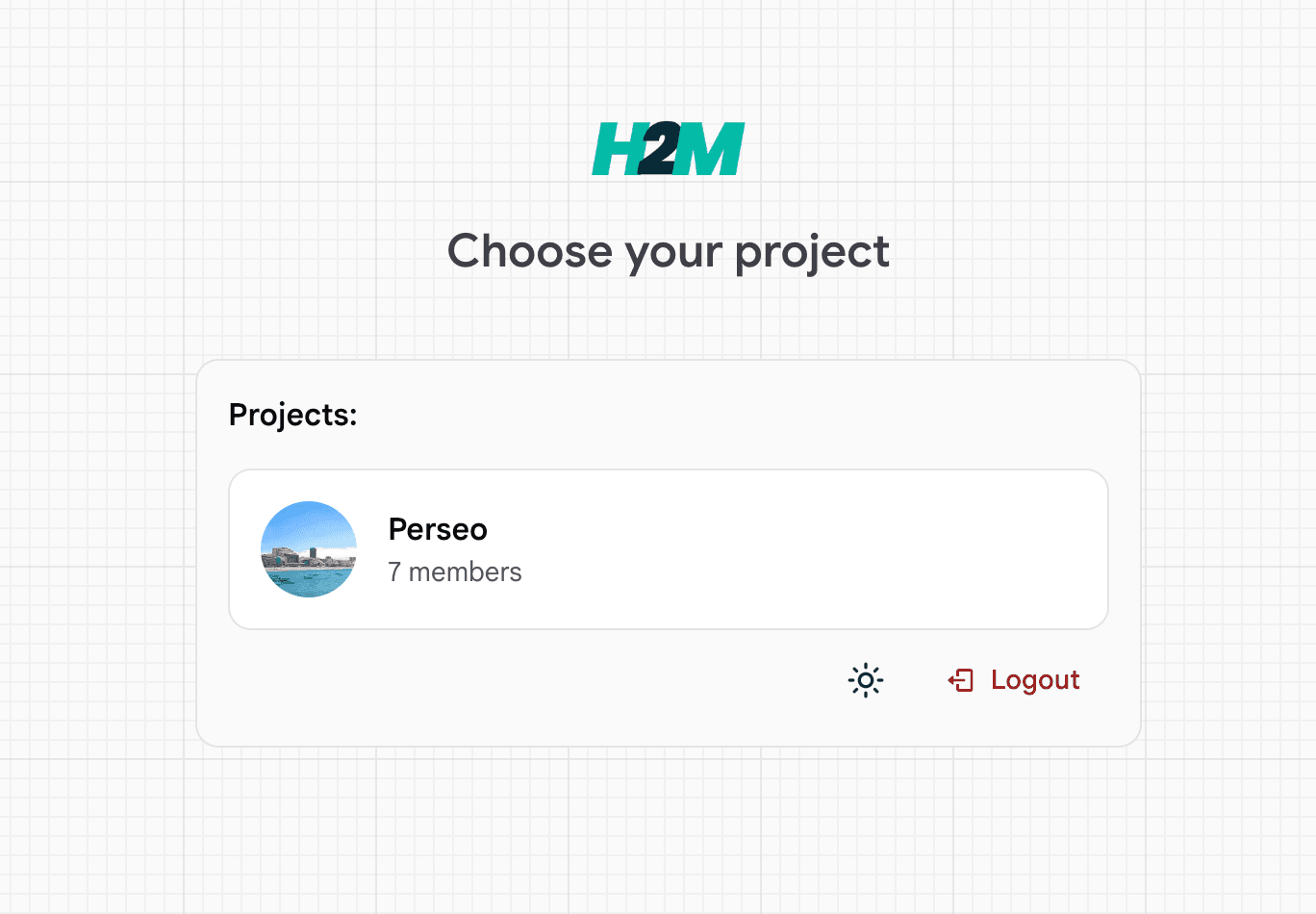
1. Sign in and pick a project
Log in with your email and password. After authentication, choose a project—datasets and trainings belong to that project.
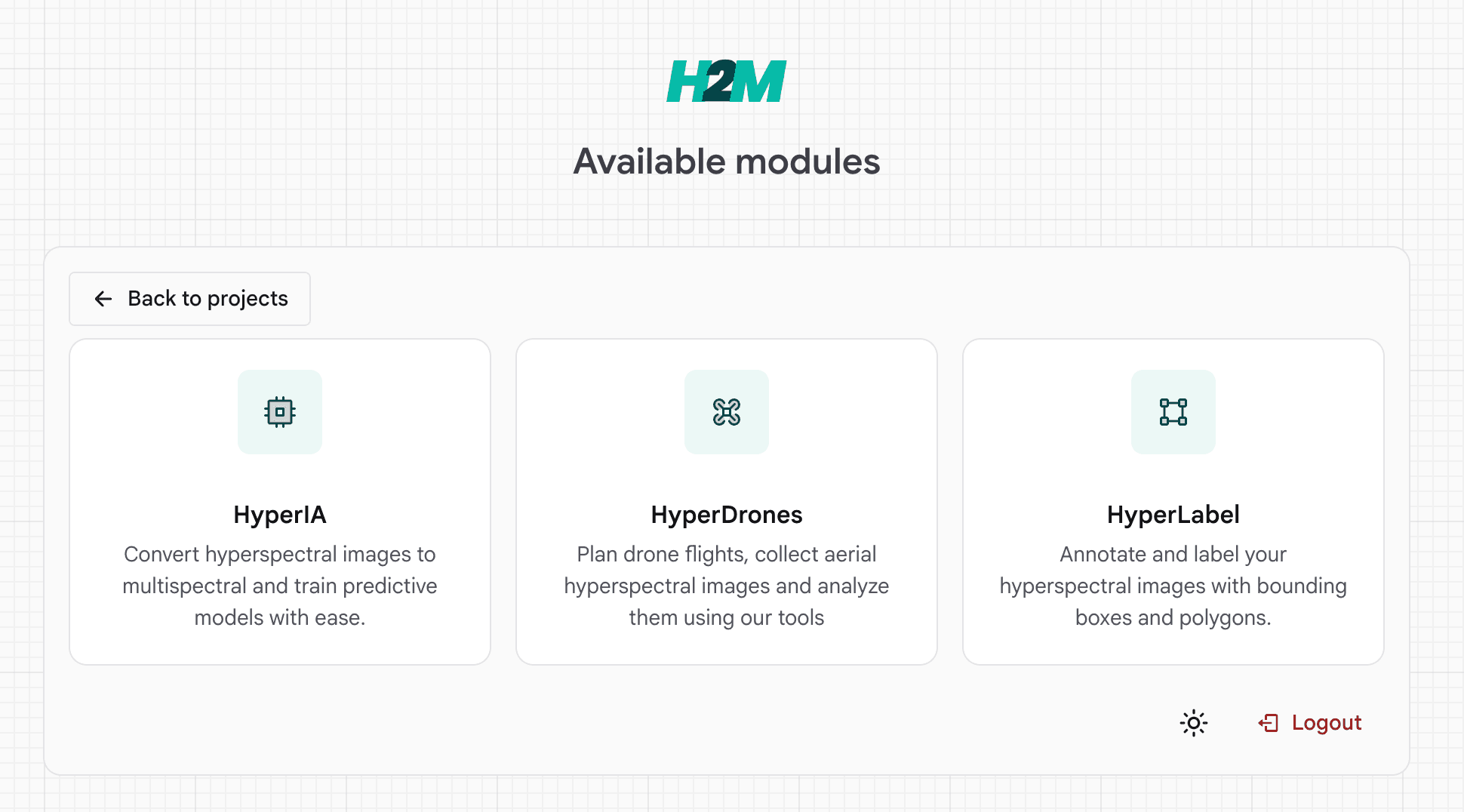
2. Open the HyperIA module
From Available modules, select HyperIA (CPU icon). Other modules (HyperLabel, HyperDrones) are documented separately.
3. Datasets overview
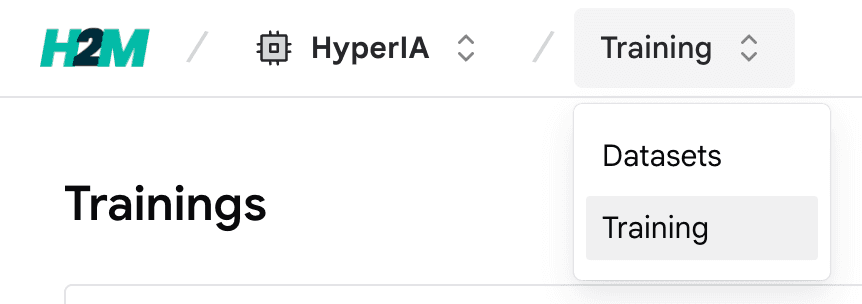
Inside HyperIA, use the top breadcrumb: HyperIA → Datasets lists your datasets. You can switch to Training from the same menu when you are ready to train models.
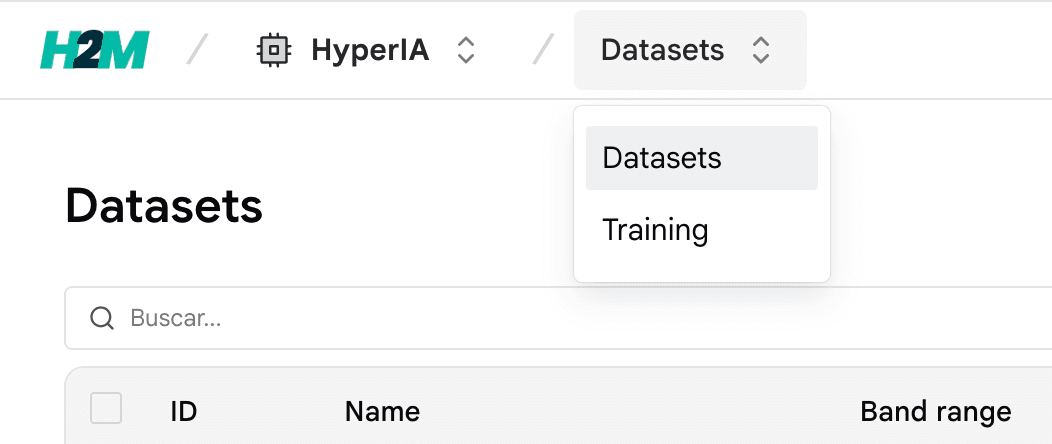
4. Create a dataset
Create a new dataset and set a name you will recognize later (it appears in the training wizard).
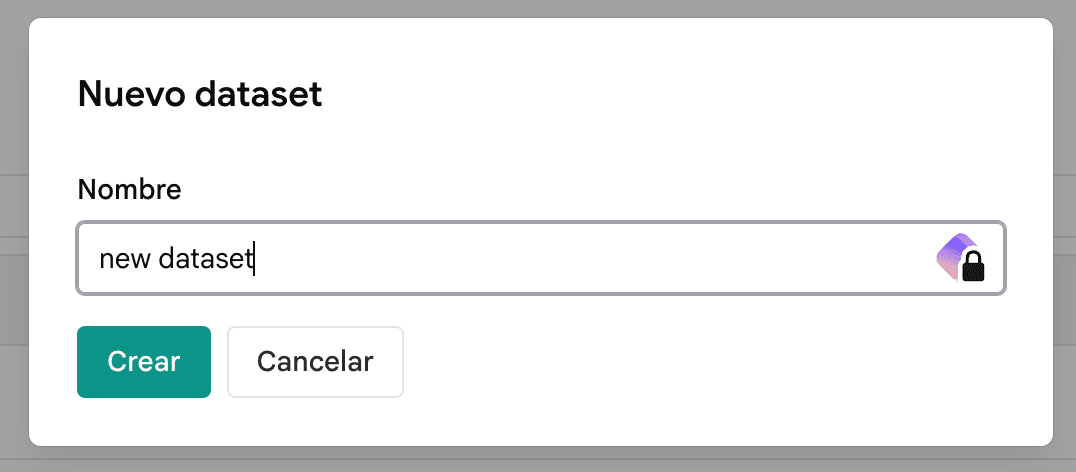
5. Add labels and CSVs
Each class in your problem needs label data:
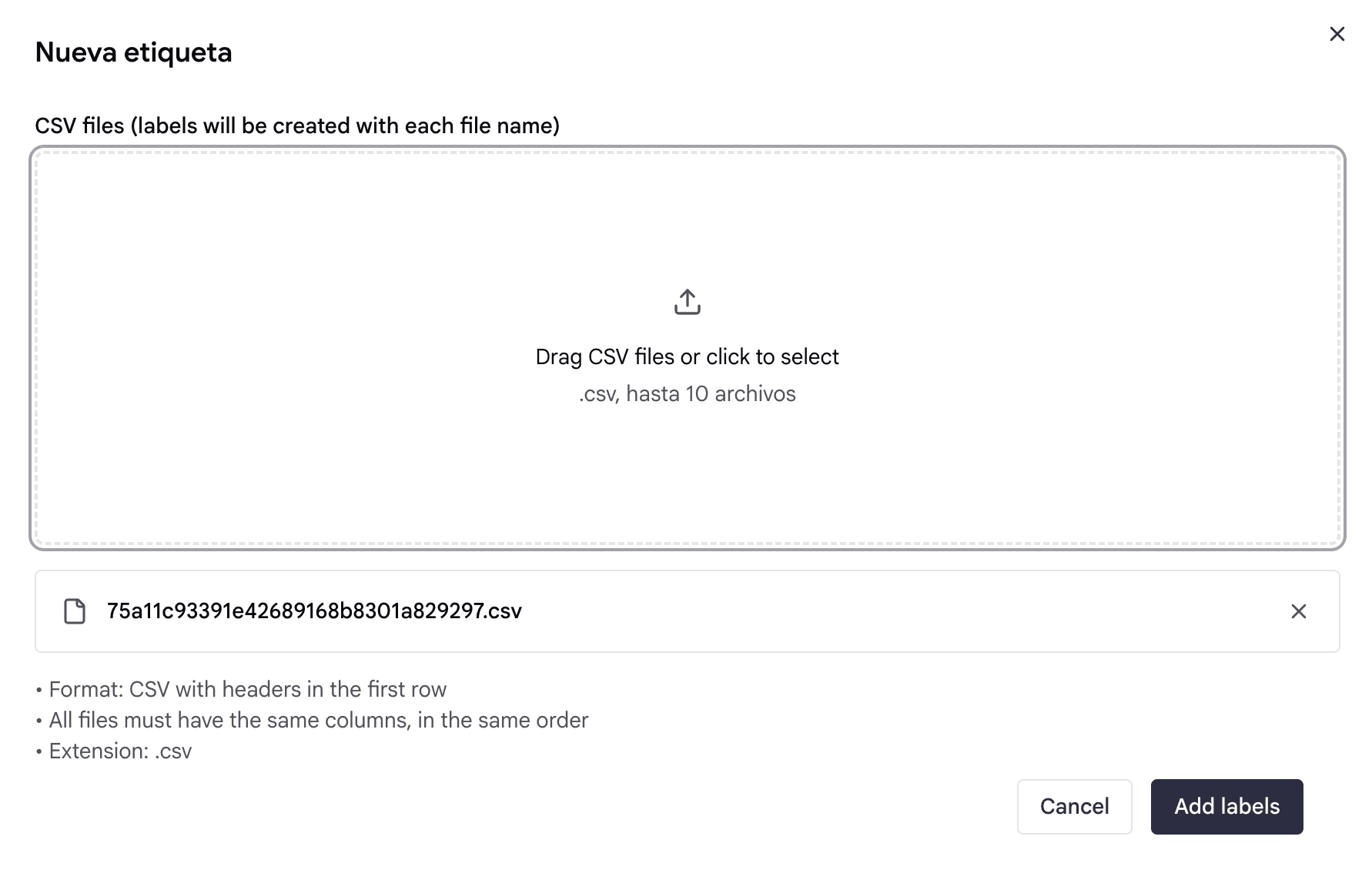
- Use + Add label to attach CSV files.
- Upload one CSV per class. Each row corresponds to one pixel in the multispectral/hyperspectral image (see on-screen help).
- In the New label dialog, you can drag multiple
.csvfiles (up to 10 at a time). A label is created for each file name. All files must use the same columns in the same order, with a header row.
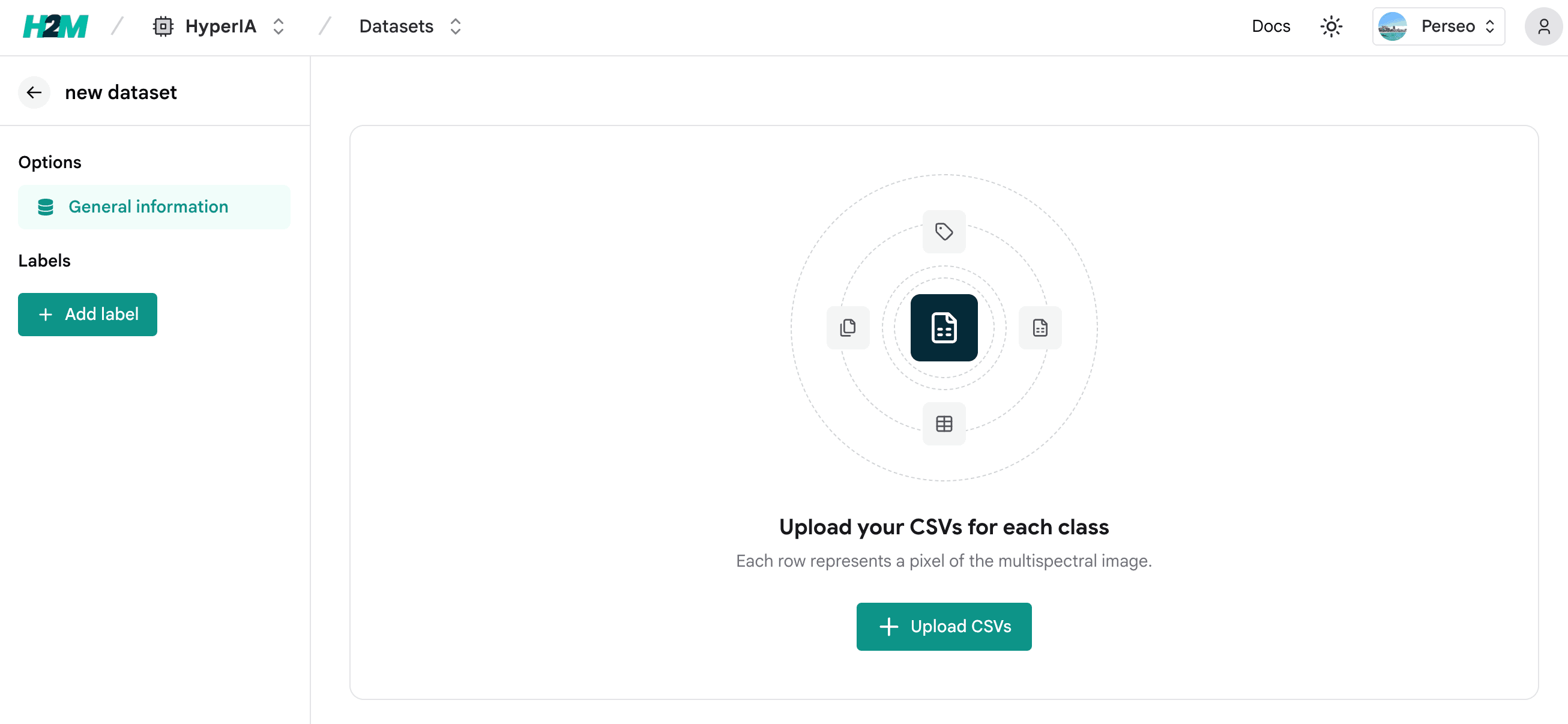
6. Check the dataset
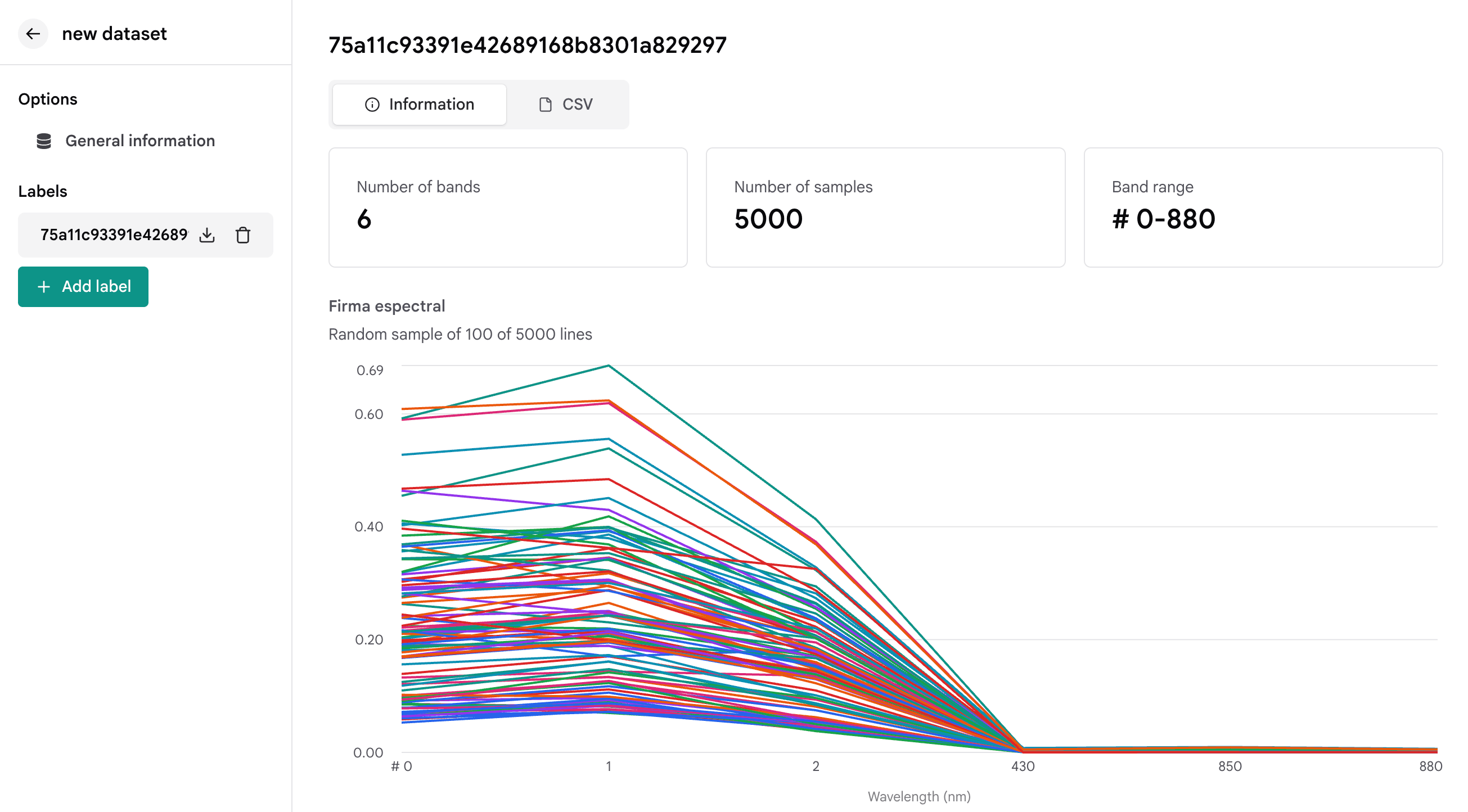
Open your dataset to confirm number of bands, number of samples, and band range. The Spectral signature chart plots a random subset of rows so you can sanity-check reflectance before training.
7. Start a training
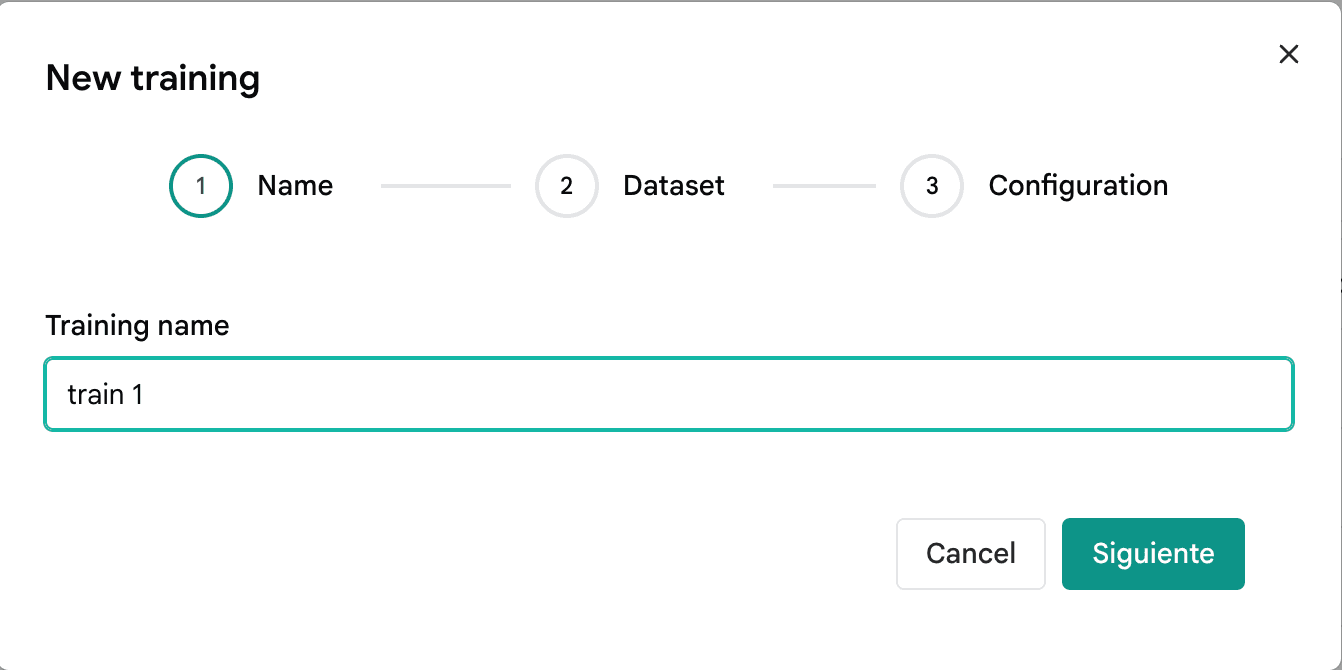
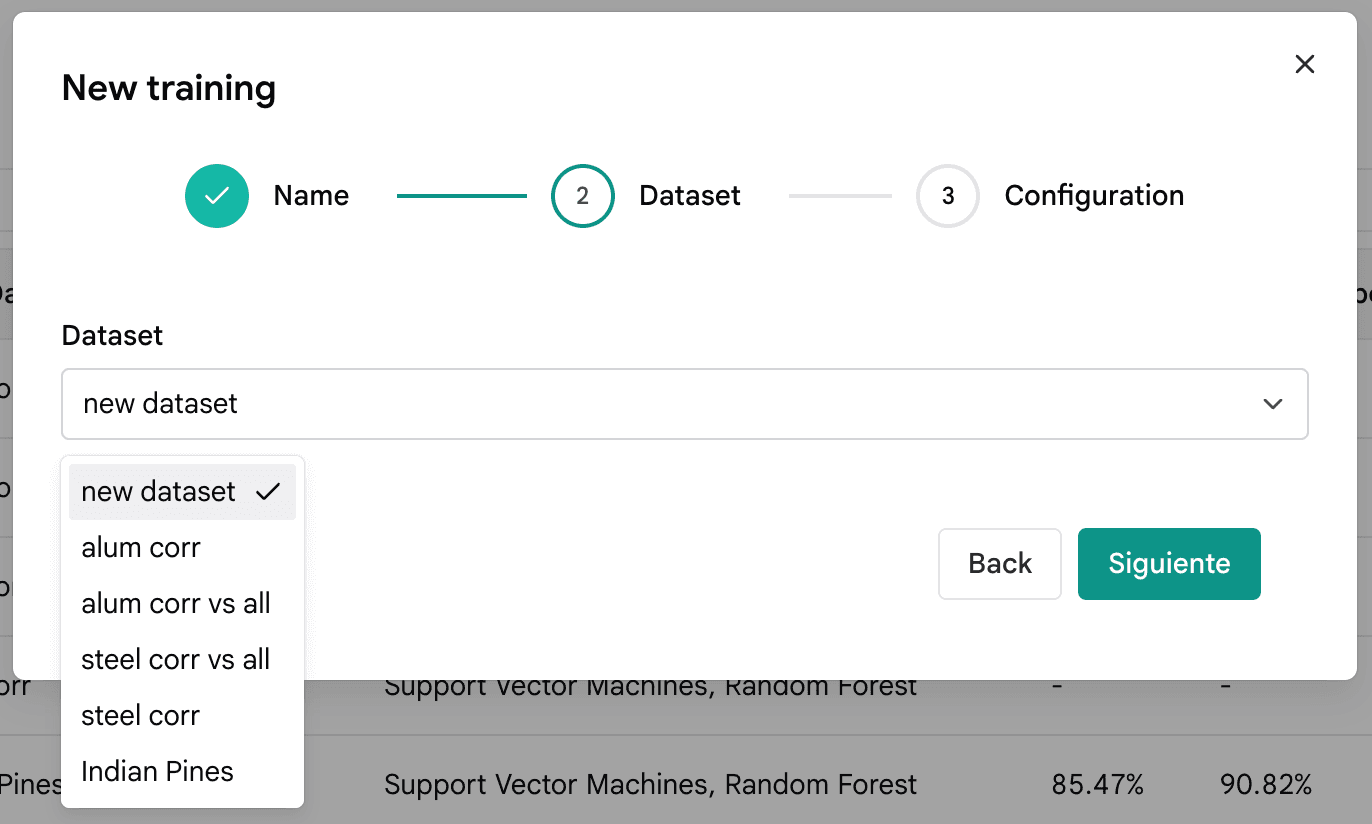
Go to HyperIA → Training to see trainings. Start New training and complete the wizard:
- Name — identify the run (e.g. experiment or model variant).
- Dataset — pick one of your datasets.
- Configuration — choose a classifier (e.g. Support Vector Machines, Random Forest), a selector (e.g. SFS), and the initial/final band range the selector should use.
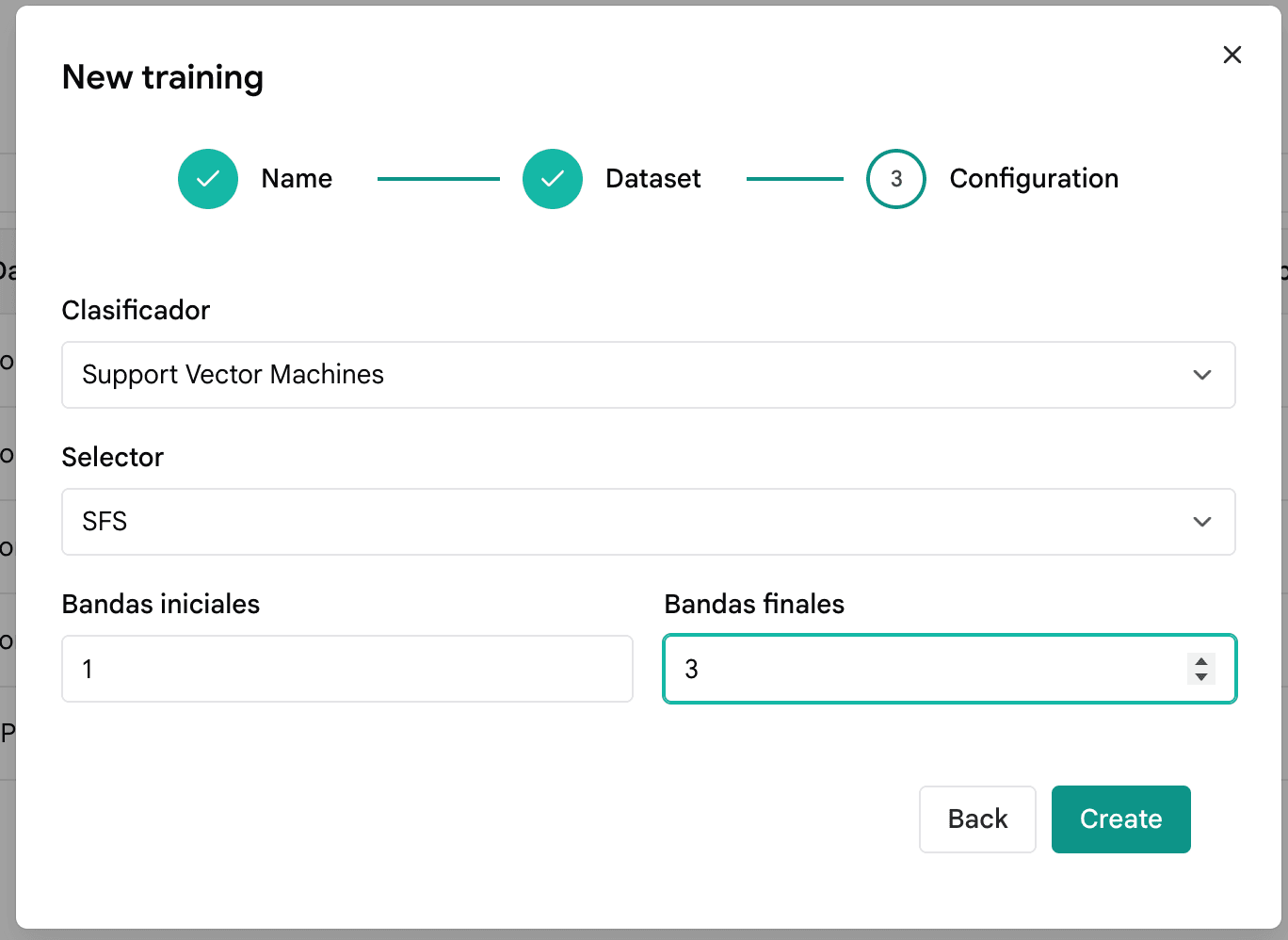
After you confirm, the app runs training with your settings.
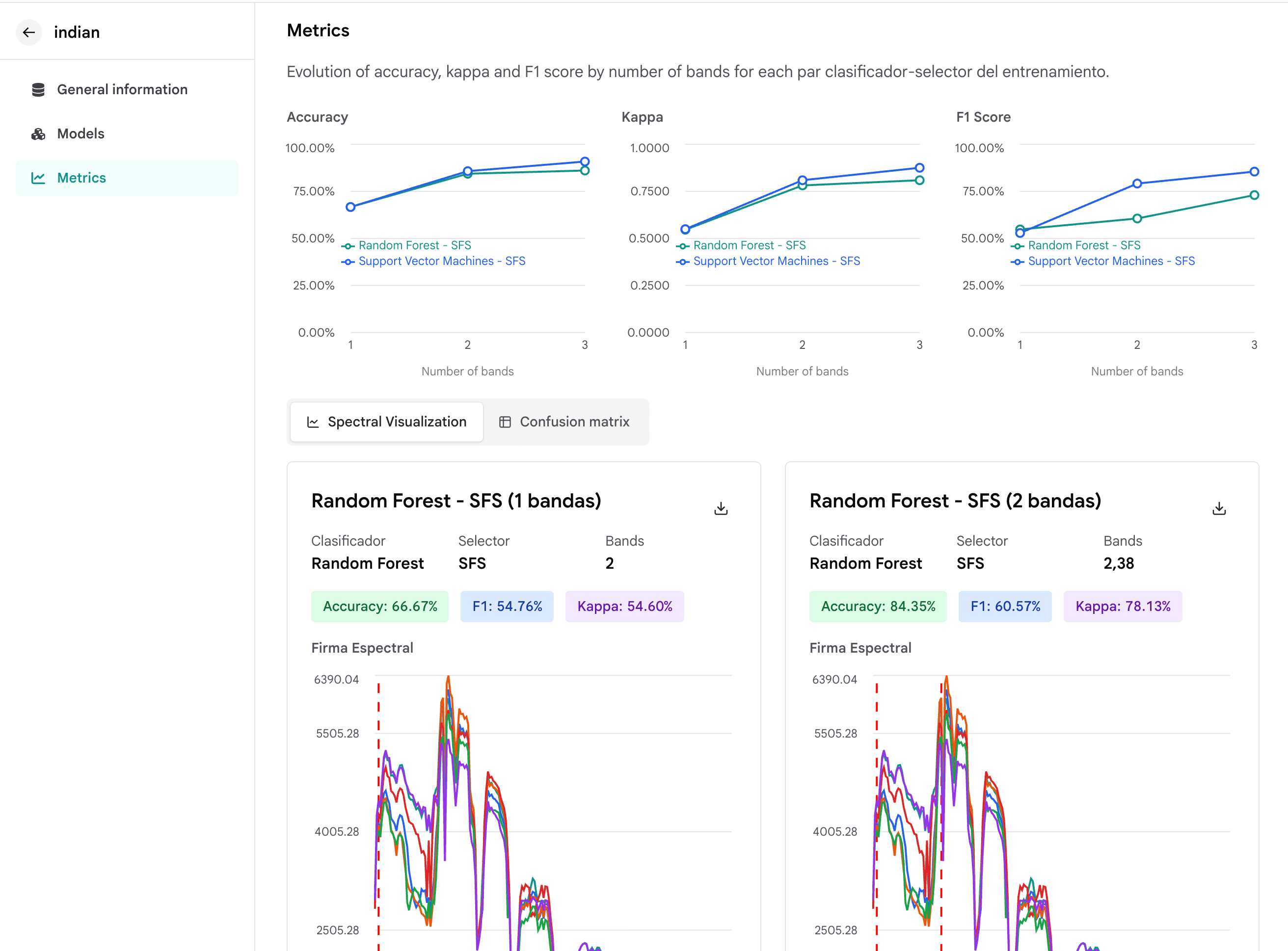
8. Metrics and comparison
Open the project’s Metrics (or equivalent) view to compare models: evolution of accuracy, kappa, and F1 by number of bands, plus spectral visualization (and optionally confusion matrix) for each classifier–selector combination.